Browse the help
-
Patreon & supporting the site
- How do patron perks work?
- How do I connect my Patreon account?
- Do I need to do anything if I'm already a patron?
- What about the Discord patron roles?
- I pledge on Patreon but don't have my perks
- I see a banner asking me to connect Patreon
- My perks were removed
- What are the patron perks?
- How else can I support the site?
-
Contact
Using the site
Watching replays in-game, the pro and coach tags, and CSV exports.
#How do I watch a replay from the in-game perspective?
The ballchasing.com 3D viewer does not aim to reproduce the game perspective. It aims instead to offer a simplified and lightweight view to make it easier to:
- View the whole field and all the players at once
- See patterns and rotations
To watch it in the game's own replay viewer:
- Download the replay file:

- Move the downloaded file to
Documents>My Games>Rocket League>TAGame>Demos. It should then appear in the in-game replay viewer. - The in-game replays list is sorted from newest to oldest. You might have to scroll down to find the replay you added
- You can also delete/move replays out of the
Documents>My Games>Rocket League>TAGame>Demosfolder to make it easier to find the newly added replay
#How do I get the pro or coach tag?
ballchasing.com tags players as pro using Liquipedia. Pro players are awarded the pro tag, which is displayed next to their name on the site:

A player is tagged as pro when:
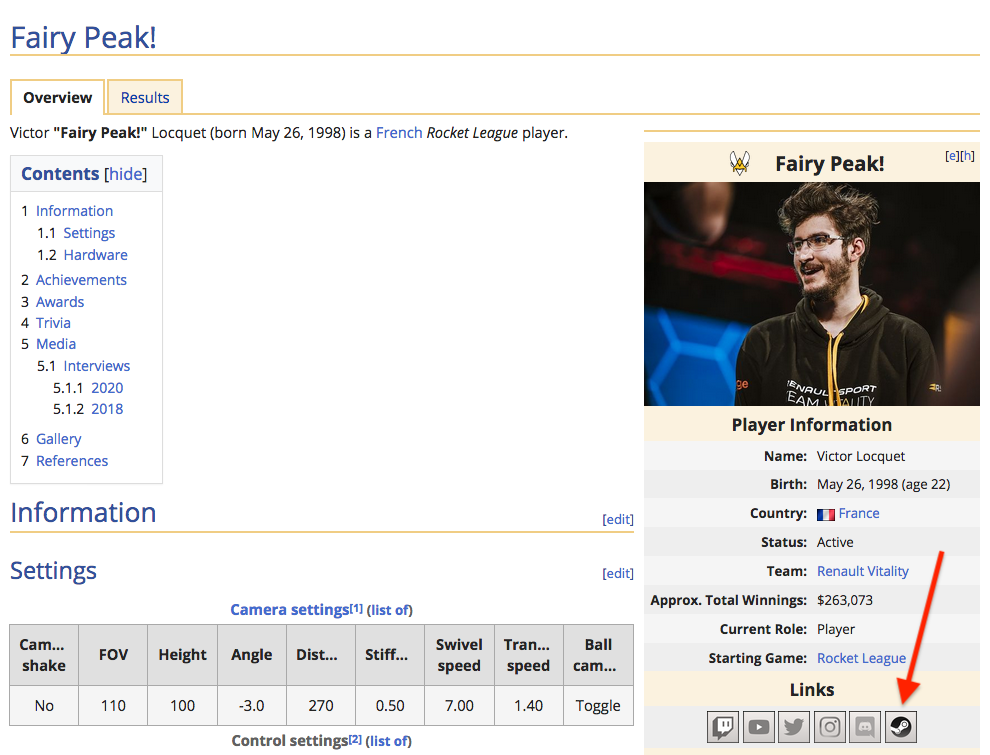
- A Liquipedia page dedicated to that player exists
- The Liquipedia page contains an up-to-date link to the player's Steam profile
For example, here's what such a page looks like: Fairy Peak
The coach tag
Coaches get a coach tag next to their name the same way: their Liquipedia page is in the Coaches category and links to their Steam profile. Someone who is both a player and a coach gets both tags. The coach tag is a label only: the pro tag is the one that comes with a pro account.
ballchasing.com is not responsible for creating the Liquipedia page nor configuring the link to the Steam profile
Please refer to Liquipedia's Notability Guidelines for more details on how and when a player gets their page.
You can also use Liquipedia's Discord server if you still have unanswered questions.
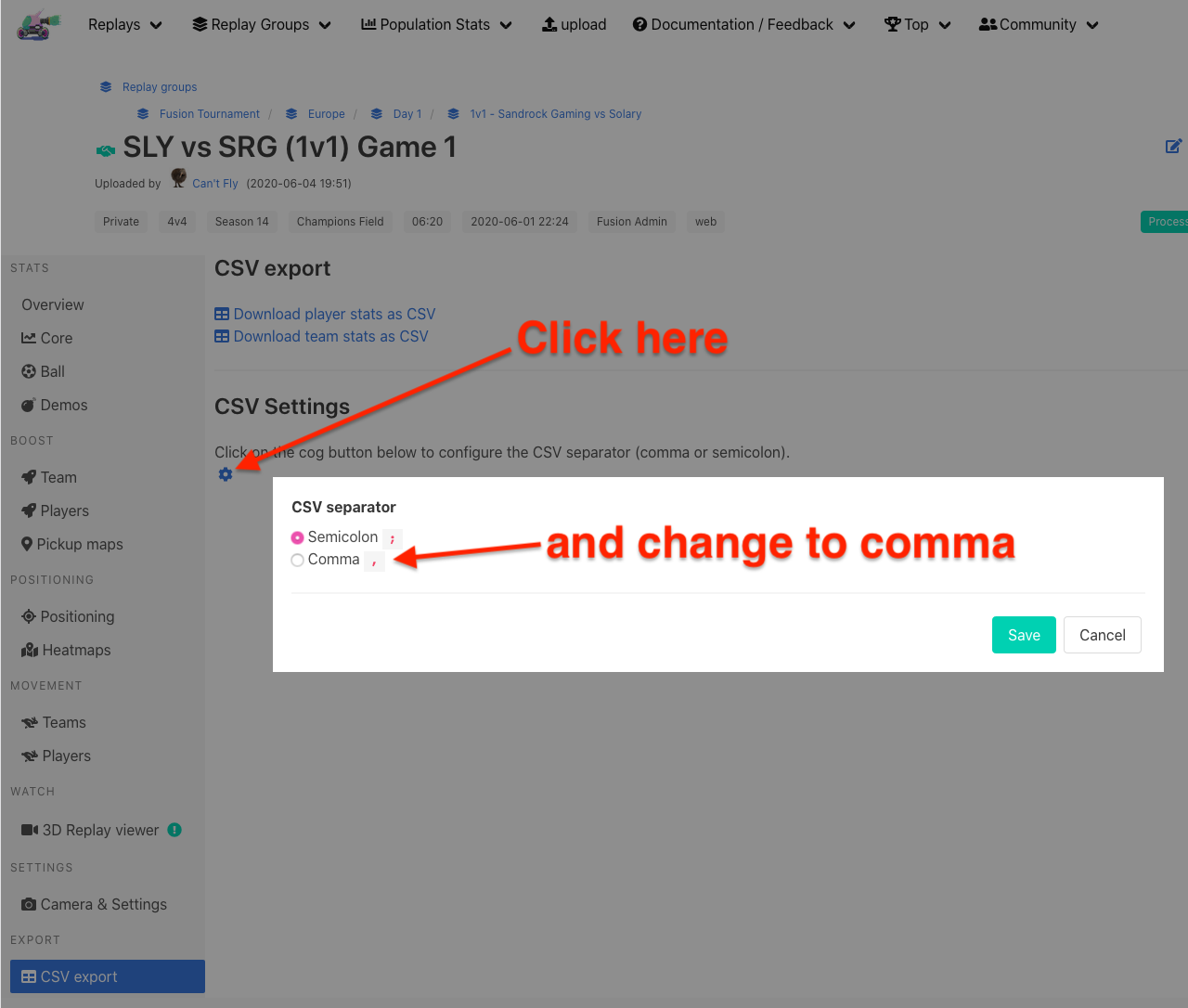
#Excel or Google Sheets doesn't show the CSV stats as a table
Simply change the CSV separator in the site: go to any replay's details page, and in the CSV export tab click the cog button and choose one of comma (US) or Semicolon.